
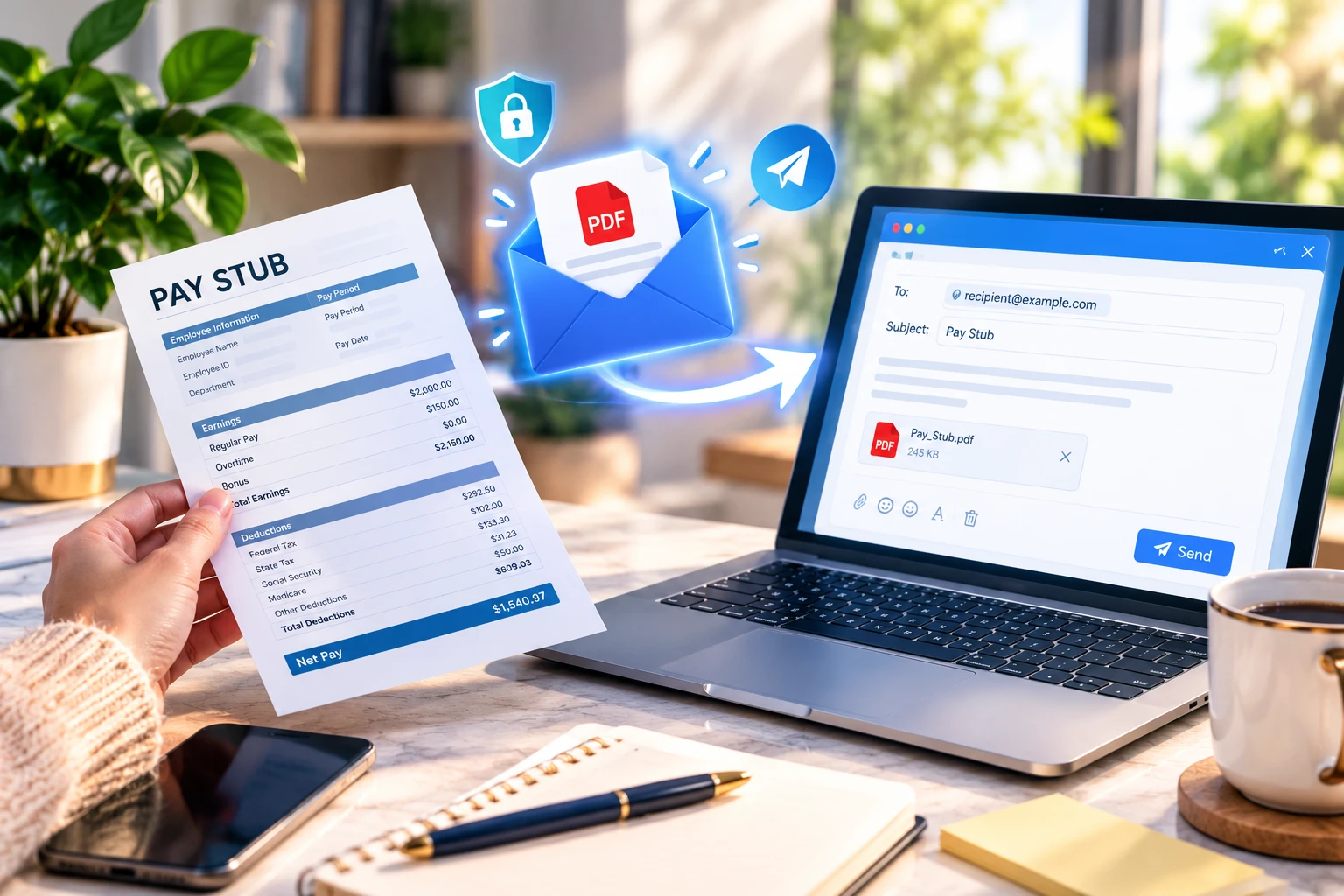
How to Send Pay Stubs Through Email
To send a pay stub through email, save or download the correct pay stub, preferably as a readable PDF, attach it to a new email, confirm the recipient’s address, and review the attachment before you press send. Pay stubs contain sensitive personal and financial information, so the sender should also use appropriate security measures and follow any employer or payroll policies that apply.
Whether you are an employee sharing a pay stub with a landlord, an employer delivering payroll documents to staff, or a payroll administrator handling requests, the process is similar. This guide covers the full task, from preparing the file to fixing problems when a recipient cannot open it.
Can You Send a Pay Stub Through Email?
In most situations, yes. Email is a convenient way to send an electronic pay stub, and a PDF attachment is the most common approach because it keeps the layout consistent across devices.
A few points shape how you should do it:
- Verify the recipient’s email address before sending.
- Treat the document as sensitive, because ordinary email is not automatically secure.
- Employers should follow their own payroll policies and any requirements that apply in their location.
- If the recipient offers a secure upload portal or the employer provides a payroll system, that option may be the better choice.
Rules about how payroll documents must be delivered, stored, or protected differ by country, state, and employer. Nothing in this guide should be read as a universal legal requirement.
What Is a Pay Stub?
A pay stub, sometimes called a pay slip or earnings statement, is a document that summarizes what an employee earned and what was withheld for a specific pay period. The exact contents depend on the payroll system and the jurisdiction, but a pay stub often includes:
- Employee name
- Employer information
- Pay period dates and pay date
- Gross pay
- Taxes withheld
- Other deductions, such as benefits contributions
- Net pay
- Year-to-date amounts
Some pay stubs show a partial identification or account number, while others show very little beyond the basic figures. Check what your document actually contains before you decide how to send it.
How to Send a Pay Stub Through Email
These eight steps work for most email services and most payroll systems.
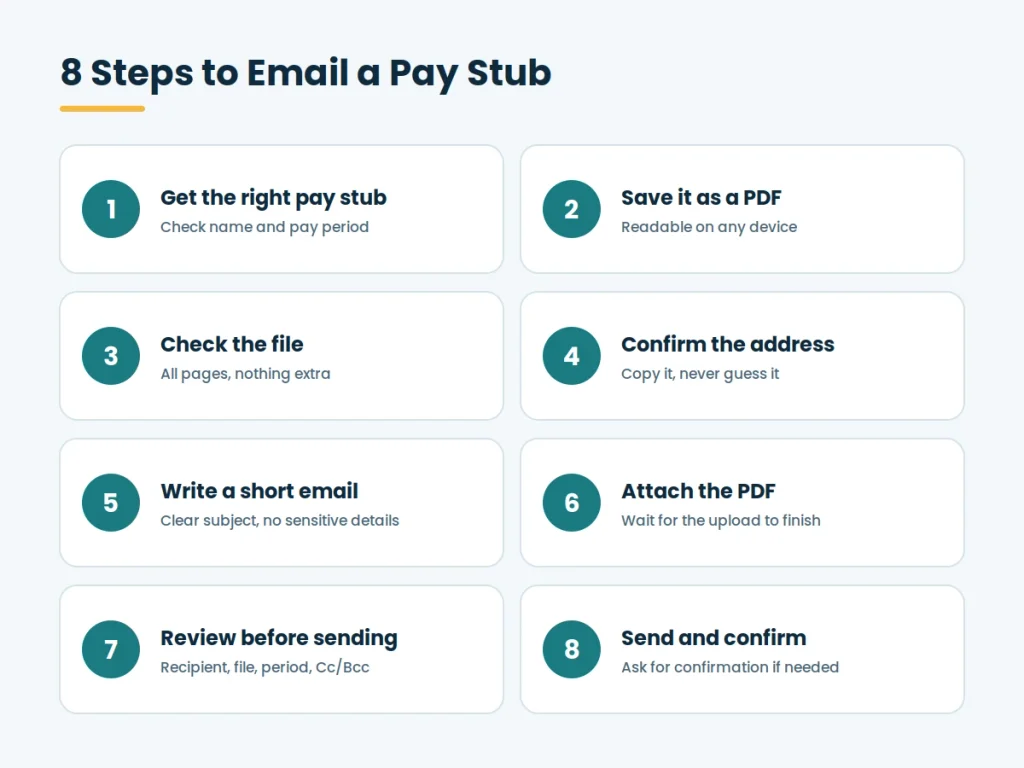
Step 1: Get the Correct Pay Stub
Download or locate the pay stub in your payroll system, employee portal, or personal records. Payroll administrators can generate it from the payroll software.
Before you move on, check:
- The employee name
- The pay period and pay date
- The employer name
- The amounts
- That you have the correct version of the document, not a draft or an older copy
If someone has requested the pay stub, confirm exactly what they need. A lender may want the two most recent stubs, while a landlord may want a single recent one. Sending only what is requested keeps your personal information to a minimum.
Step 2: Save It in an Appropriate Format
PDF is usually the most practical format. It generally preserves the layout, fonts, and numbers across computers, phones, and tablets, and most modern devices can open PDF files. Your payroll system probably offers a PDF download or a print-to-PDF option.
PDF is a practical choice, not a rule, and it is not automatically secure. A plain PDF can be opened by anyone who gets the file. If the recipient asks for a different format, follow their instructions.
Step 3: Check the File Before Sending
Open the file yourself and confirm that:
- It is readable and not blurry or cut off
- All pages are present
- The correct pay period is shown
- No unrelated documents are included
- The file does not contain information you did not intend to share
If you scanned or photographed a paper stub, make sure the text is sharp enough to read. Recipients often reject images they cannot read clearly.
Step 4: Confirm the Recipient’s Email Address
This step matters more for payroll documents than for most attachments, because a misdirected pay stub exposes someone’s financial details to a stranger.
If the recipient gave you the address, use that exact address instead of guessing at the format. Copy and paste it when you can. Look out for typing errors, similar-looking domains, and old addresses. For a sensitive request from someone you do not know well, confirm the address through a trusted channel, such as the organization’s official website or a phone number you already have.
Step 5: Create the Email
A professional email for this purpose is short. It should include:
- A clear subject line
- A brief message identifying the attached document
- Any relevant instructions or context
- A professional closing
Keep sensitive details out of the body. The attachment carries the information, so you do not need to repeat salary figures, account numbers, or identification numbers in the text.
Step 6: Attach the Pay Stub
Every major email service has an attachment control, typically shown as a paperclip icon or an option labeled attach or add file. Button names and layouts change over time, so look for the attachment option in the compose window rather than following a fixed set of clicks.
Select the PDF, wait for the upload to finish, and confirm that the file name appears in the message. Large files can take a moment, and some services warn you if the attachment exceeds their size limit.
Step 7: Review Before Sending
Run through this short checklist:
- Correct recipient
- Correct pay stub
- Correct attachment
- Correct pay period
- No unintended recipients in the To, Cc, or Bcc fields
- Appropriate security method for the sensitivity of the document
Taking thirty seconds here prevents most of the mistakes covered later in this guide.
Step 8: Send and Confirm Receipt When Necessary
Once you are satisfied, send the message. For routine payroll delivery, you may not need to follow up. For important submissions, such as a rental application or a loan document, ask the recipient to confirm that they received the file and could open it. Keep the sent message so you have a record of what you submitted and when.
Example Email for Sending a Pay Stub
Here is a short, generic example you can adapt. It is not a required template.
Subject: Pay Stub for [Pay Period]
Hello [Recipient Name],
Please find my pay stub for [pay period] attached as a PDF, as requested.
Let me know if you need anything else, and please confirm that you received the file.
Thank you,
[Your Name]
If the file is password protected, add a sentence saying that you will send the password separately.
How to Send a Pay Stub Securely by Email
A pay stub can reveal income, tax withholdings, and employer details. How well email protects that information depends on the email system, the access controls on each mailbox, whether the message is encrypted in transit, employer policy, and how sensitive the document is. Email is neither always safe nor always unsafe, so reduce risk with practical safeguards:
- Verify the recipient. Confirm the address and check that autocomplete has not filled in a similar contact.
- Use a work email when appropriate. Employers and payroll staff should send from official accounts, not personal ones.
- Use password protection or encryption when appropriate and supported. Your PDF software or email service may offer these options.
- Send the password separately. Use a text message, phone call, or another channel, not the same email as the file.
- Use an approved system when policy requires it. If your company mandates a secure payroll or document-sharing platform, use it.
- Avoid public or shared computers. Handling payroll files on a library or hotel computer leaves copies behind.
- Delete unnecessary local copies. Once the document has been delivered and you no longer need it, remove stray downloads and attachments from shared folders.
Never bypass company security policies to make delivery easier. If a policy seems to get in the way, ask your IT or payroll team about the approved alternative.
Should You Password Protect a Pay Stub?
Sometimes. The right answer depends on several factors:
- Employer policy
- The payroll system in use
- The type of information in the document
- The recipient and their ability to open protected files
- The email system and its security features
- Any security requirements that apply to you
A password can add a layer of protection if the attachment is accidentally forwarded or obtained by someone who does not have the password. It does not make the document or the email exchange completely secure. Weak passwords can be guessed, and a password shared carelessly offers little protection.
If you use one, follow the basic principle: send the document and the password separately. Never put the password in the same email as the protected pay stub. Choose a strong password, and tell the recipient how they will receive it.
In some situations a secure payroll portal or document-sharing system is a better fit than any email attachment. That is especially true for regular delivery, large batches, or documents with sensitive identifiers.
How to Send Multiple Pay Stubs Through Email
If a lender or landlord asks for several months of pay stubs, you have a few practical options:
- Separate files. For a small number of documents, attach each pay stub as its own PDF. This is the simplest approach and easy for recipients to review.
- One combined PDF. Merge the pay stubs into a single file if the recipient prefers it. Put them in chronological order and check that every page made it in.
- A ZIP file. Use a clearly named ZIP archive only if the recipient can open it and your organization’s security policy allows it. Some email systems block or flag ZIP attachments.
- A secure document portal. For larger or more sensitive batches, upload through a portal instead of attaching everything to an email.
Employers should never combine different employees’ pay stubs into one message to a single recipient. Each employee’s documents should go only to that employee or to an authorized recipient.
Also watch the total size. Many email services limit the combined size of attachments, and a message that goes over the limit may bounce or fail to deliver.
How to Send a Pay Stub From a Phone
You can send a pay stub from a smartphone or tablet. The exact steps vary with the device, the email app, and the payroll system, but the general process is:
- Download or open the pay stub from the payroll app, portal, or your files.
- Confirm that it is the correct document and pay period.
- Open your email app and start a new message.
- Write the subject and a short message.
- Attach the pay stub using the attachment option, often a paperclip icon.
- Verify the recipient’s address.
- Review the message and the attachment.
- Send.
On a phone, check that the downloaded file is a complete PDF and not a screenshot or a preview. Use a trusted network and device, and remove the downloaded copy from your phone once you no longer need it.
How Employers Should Send Pay Stubs to Employees
Employers and payroll teams have more to consider than an individual sending one document. Good practice includes:
- Verify employee email addresses. Confirm each address with the employee before delivering payroll documents to it.
- Use approved payroll systems. Many payroll providers include an employee portal that avoids attachments altogether.
- Follow company policies. Written procedures for delivering and storing payroll documents should guide your process.
- Use secure delivery methods where required. If your policy or applicable requirements call for encryption or a portal, use them.
- Avoid shared or unauthorized addresses. Do not send payroll documents to group mailboxes or addresses that other people can read.
- Maintain appropriate records. Keep records of what was delivered according to your retention practices.
- Limit access. Only staff who need payroll information to do their jobs should be able to send or view it.
Whether and how an employer may deliver pay stubs electronically, and what consent or access an employee must have, differs by jurisdiction. Employers should check the requirements that apply where they operate, or ask a qualified professional.
How Employees Can Send Pay Stubs to Third Parties
Employees often need to share a pay stub with someone outside the company, such as:
- A landlord
- A mortgage lender
- A bank
- A government agency
- A school
- Another authorized organization
Before sending, confirm what the recipient actually requires. They may need a specific number of pay stubs, a certain format, or a particular delivery method. Some organizations ask applicants to upload documents through their own portal and may not accept email at all.
Send the pay stub as issued. Do not edit, alter, or manipulate the figures or any other part of the document. If a recipient asks for a version with certain details redacted, such as a partial identifier, make sure the request is explicit and appropriate, and keep the original unchanged. Altering payroll documents to misrepresent income can have serious consequences.
What Should You Do Before Sending a Pay Stub?
Use this table as a quick final check.
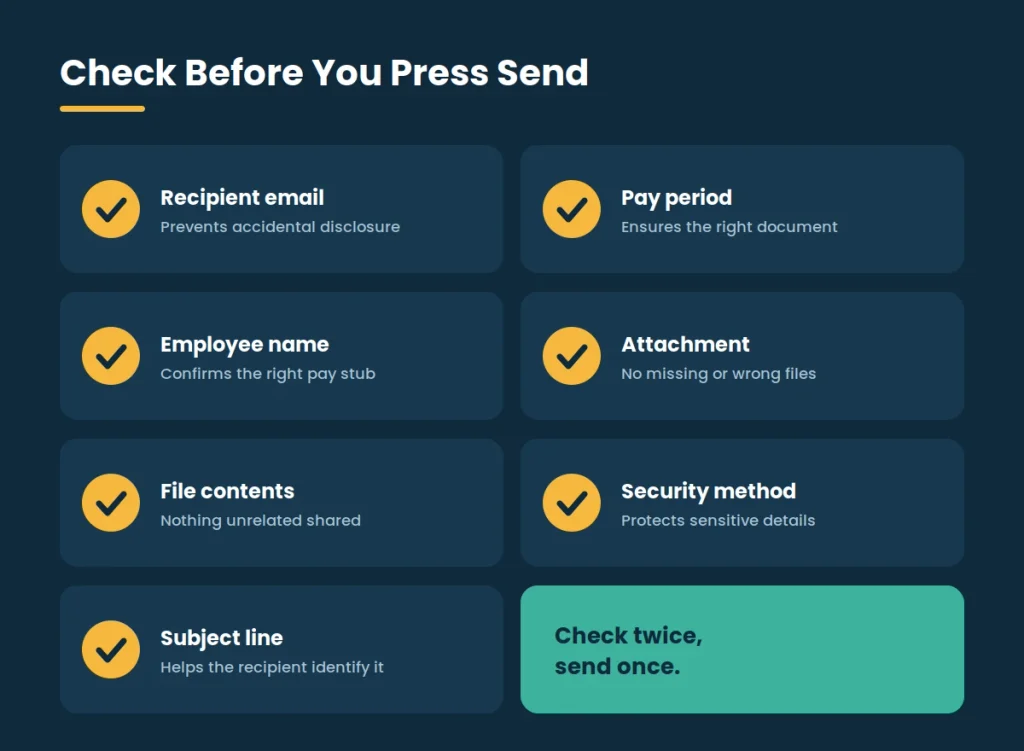
| Check | Why it matters |
| Recipient email | Prevents accidental disclosure |
| Pay period | Ensures the correct document is sent |
| Employee name | Confirms the correct pay stub |
| Attachment | Prevents missing or wrong files |
| File contents | Prevents unrelated information from being shared |
| Security method | Protects sensitive information |
| Subject line | Helps the recipient identify the document |
Common Mistakes When Emailing Pay Stubs
Most errors are easy to prevent.
- Sending to the wrong email address. Copy the address from the recipient’s message and check the To field before sending.
- Attaching the wrong pay period. Confirm the date range on the document itself, not just the file name.
- Forgetting the attachment. Look for the file name in the message before you send.
- Sending an unreadable file. Open the PDF first, and avoid blurry photos or cropped screenshots.
- Including unnecessary sensitive information in the email body. Keep the message short and let the attachment carry the details.
- Sending a password in the same email as the protected document. Use a separate channel.
- Using an insecure or unauthorized file-sharing method. Stick to tools your employer or the recipient has approved.
- Sending multiple employees’ documents to the same recipient accidentally. Prepare and send each employee’s document separately.
- Failing to follow company payroll procedures. Read your internal process before you improvise.
What If the Recipient Cannot Open the Pay Stub?
Work through these steps in order:
- Confirm that the attachment was actually included in the sent message.
- Check that the file downloaded correctly and is not zero bytes or partly saved.
- Ask the recipient whether they have a PDF reader installed, or whether their email app can preview PDFs.
- If the file may have been corrupted, save it again from the source and resend it.
- Check whether the file exceeds the email service’s attachment limit, which can cause delivery to fail.
- If email attachment delivery keeps failing, use an approved secure sharing method.
If the file is password protected, confirm that the recipient received the password and is typing it correctly. Do not turn off security protections or remove a password just to make an attachment work. Switch to a secure portal or another approved delivery method instead.
Email vs Secure Payroll Portal
Different delivery methods suit different situations.
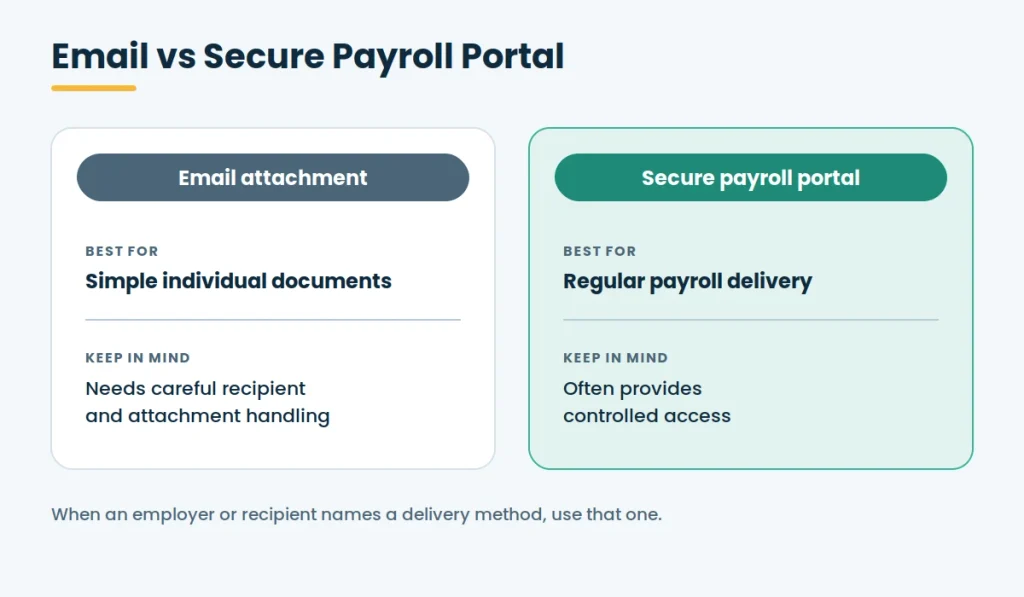
| Method | Best For | Considerations |
| Email attachment | Simple individual documents | Requires careful recipient and attachment handling |
| Secure payroll portal | Regular payroll delivery | Often provides controlled access |
| Secure document-sharing system | Sensitive or larger files | May require recipient authentication |
| Physical delivery | Situations where digital delivery is not appropriate | Slower and less convenient |
The best method depends on the employer’s policies, the systems available, and the security requirements that apply. When a recipient or employer specifies a method, use it.
How to Name Pay Stub Files
A good file name helps the recipient identify the document and reduces the chance of oversharing. Aim for names that are:
- Clear
- Professional
- Easy to identify
- Free of unnecessary sensitive information
Generic examples include:
- Pay_Stub_January_2026.pdf
- Pay_Stub_Pay_Period_01.pdf
Do not put Social Security numbers, bank account numbers, or other highly sensitive identifiers in file names. File names are visible in notifications, search results, and shared folders, and they travel with the file if it is forwarded.
What If You Sent a Pay Stub to the Wrong Person?
Act promptly and be open about it. Do not try to hide the mistake.
- Notify the right contact. If the document contained sensitive information, tell your employer, HR, payroll, or privacy and security contact.
- Contact the unintended recipient. Politely explain the error and ask them not to use or share the document.
- Request deletion where appropriate. Ask them to delete the email and any downloaded copies, and to confirm that they did.
- Follow the incident-reporting procedure. Employers typically have a process for misdirected personal data, and following it protects everyone involved.
- Resend correctly. Send the document to the intended recipient, ideally by a more secure method.
Keep in mind that you cannot always recall or fully remove an email once it has been delivered. Whether the incident triggers a formal reporting requirement depends on the jurisdiction and the circumstances, so ask your organization’s privacy contact or a qualified professional for guidance.
Frequently Asked Questions
How do I send a pay stub through email?
Save or download the correct pay stub as a readable PDF, attach it to a new email, check the recipient’s address, review the attachment, and send. Use added security when the document is sensitive.
What format should a pay stub be sent in?
PDF is commonly the most practical because it keeps the layout consistent across devices. It is not required in every case, so follow any format the recipient requests.
Is it safe to email a pay stub?
It depends on the email system, the access controls, whether encryption is used, the recipient, and employer policy. Email is not automatically secure or automatically unsafe, and sensible precautions reduce the risk.
Should I password protect a pay stub?
It can help, especially for sensitive documents, but it does not make the exchange completely secure. If you use a password, send it separately from the file.
How do I send multiple pay stubs by email?
Attach them as separate PDFs, merge them into one PDF, or use a ZIP file if the recipient and your policy allow it. For large or sensitive batches, use a secure portal.
Can I send a pay stub from my phone?
Yes. Open the pay stub, start a new message in your email app, attach the file, verify the recipient, and send. The exact steps vary by device and app.
What should I write in an email with a pay stub?
Use a clear subject, a short message that identifies the attachment and pay period, and a polite closing. Leave sensitive details out of the body.
Can an employer email a pay stub?
Often yes, but requirements and policies vary by employer and jurisdiction. Employers should follow their payroll procedures and any rules that apply to them.
Can I email a pay stub to a landlord?
Usually, if the landlord accepts email. Some landlords prefer a secure upload portal, so check their instructions first.
What should I do if I email a pay stub to the wrong person?
Notify the appropriate contact at your employer, ask the unintended recipient to delete the message and not share it, and follow your organization’s incident process. Then resend the document to the correct recipient.